Routing 2020 Sounds into Ableton Live with Loopback
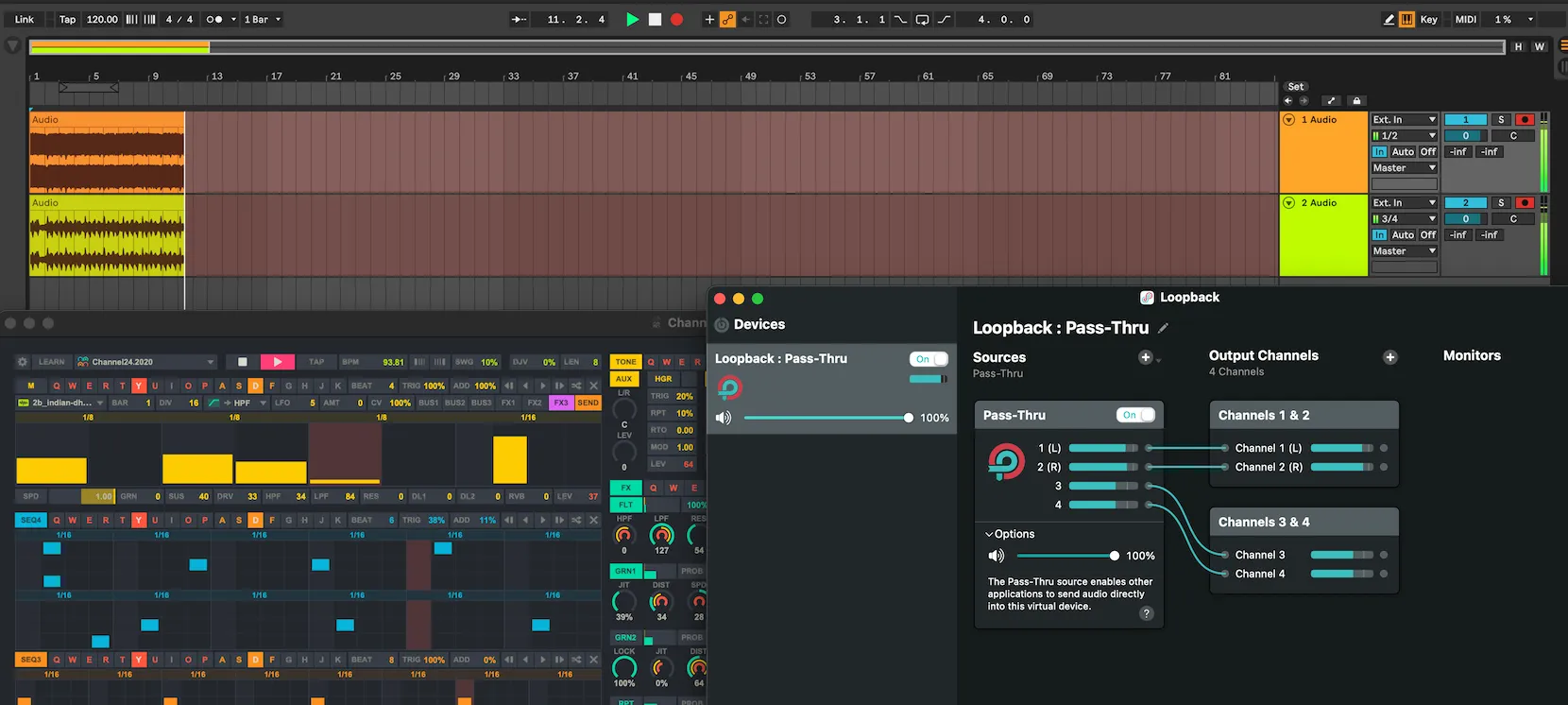
This tip uses Loopback and Ableton Live, but you can do something similar with routing apps like BlackHole and other DAWs.
Loopback Settings
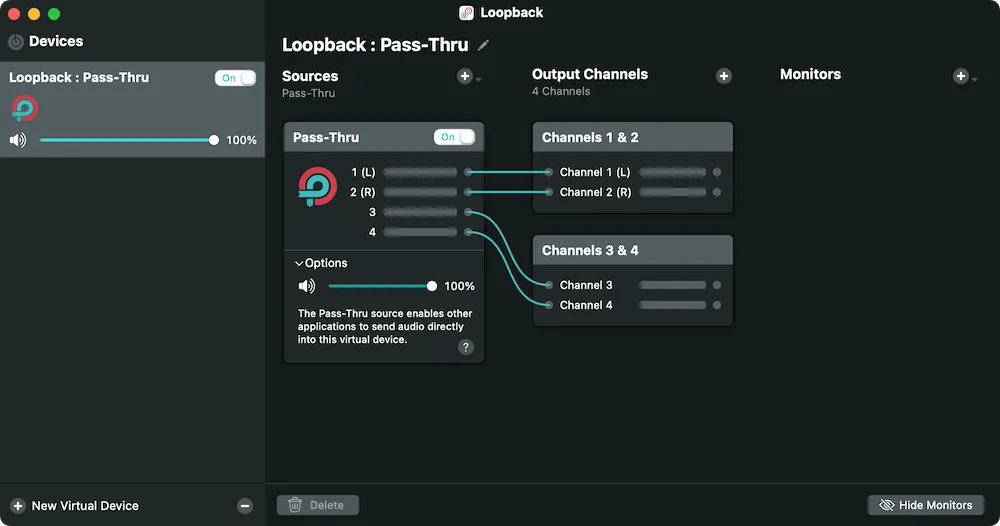
- Click
+ New Virtual Deviceto create a new virtual device. - Rename the virtual device to your liking.
- Make sure that
Path-Thruis in Sources. - Add an Output Channel.
Ableton Live Settings
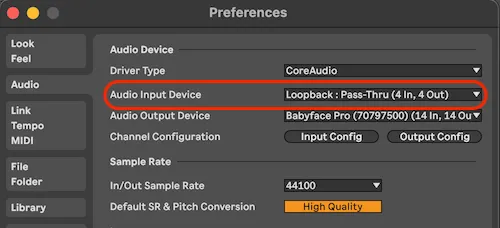
- Change the audio input device to a Loopback virtual device.
- Make sure
Stereo Input 1/2andStereo Input 3/4are enabled inInput Config.
2020 Settings
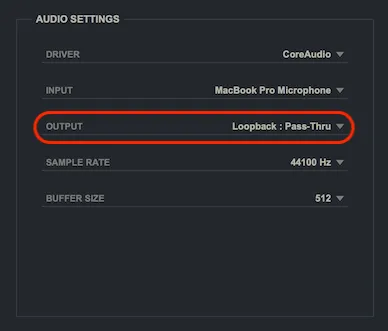
- Change the audio output device to a Loopback virtual device.
- Now you can record
OUT1andOUT2into Ableton Live.